The section Translation draft from AI describes how to set up a translation file that can be used interactively. When we introduced AI translations, this was the only way to get AI translations, which will be pulled from Gemini. This will basically translate the page you are currently looking at and paste it on the screen. The assumption here was that a user finds a passage in an unfamiliar text, most likely through a search, and would like to quickly understand what is being said. Since AI engines might give unexpected results (or no results), a user might have to repeat the request a few times until the result is satisfying.
It was never expected that users would use this mechanism to create complete translations, for the purpose of creating translations, rather than reading the text. However, since AI technology advanced and there seems to be a desire to have more translations, a new mechanism was introduced: Users can now request complete translations for texts of interest.
How to request a translation?
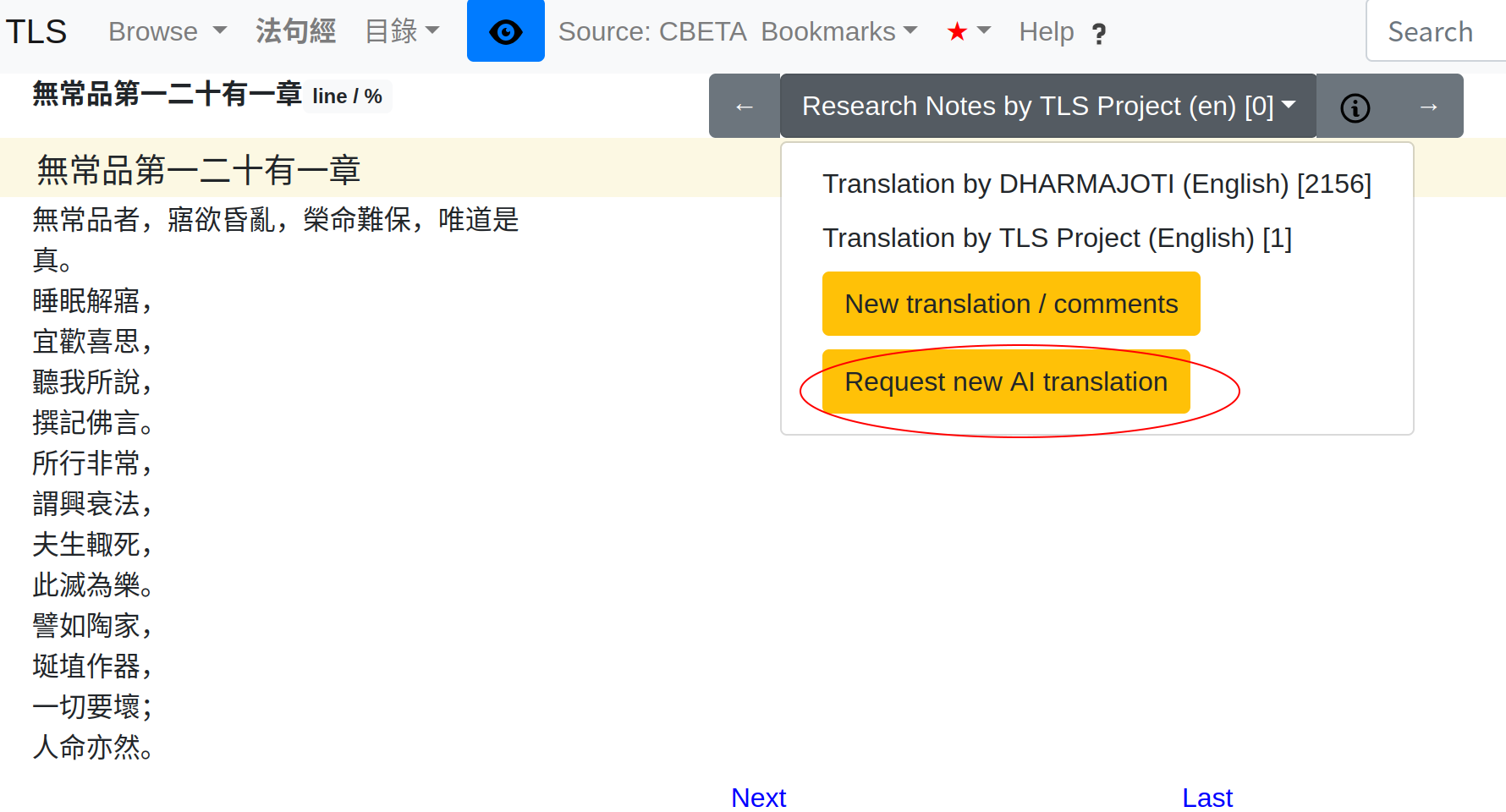
The process for requesting a translation is very similar to creating a translation file. A new item has been appended to the dropdown list for selecting translations, as shown in this screenshot:
Once this has been clicked, a dialog will pop up that allows you to select the target language, the AI vendor to be used and the task you want to have performed, as shown here:
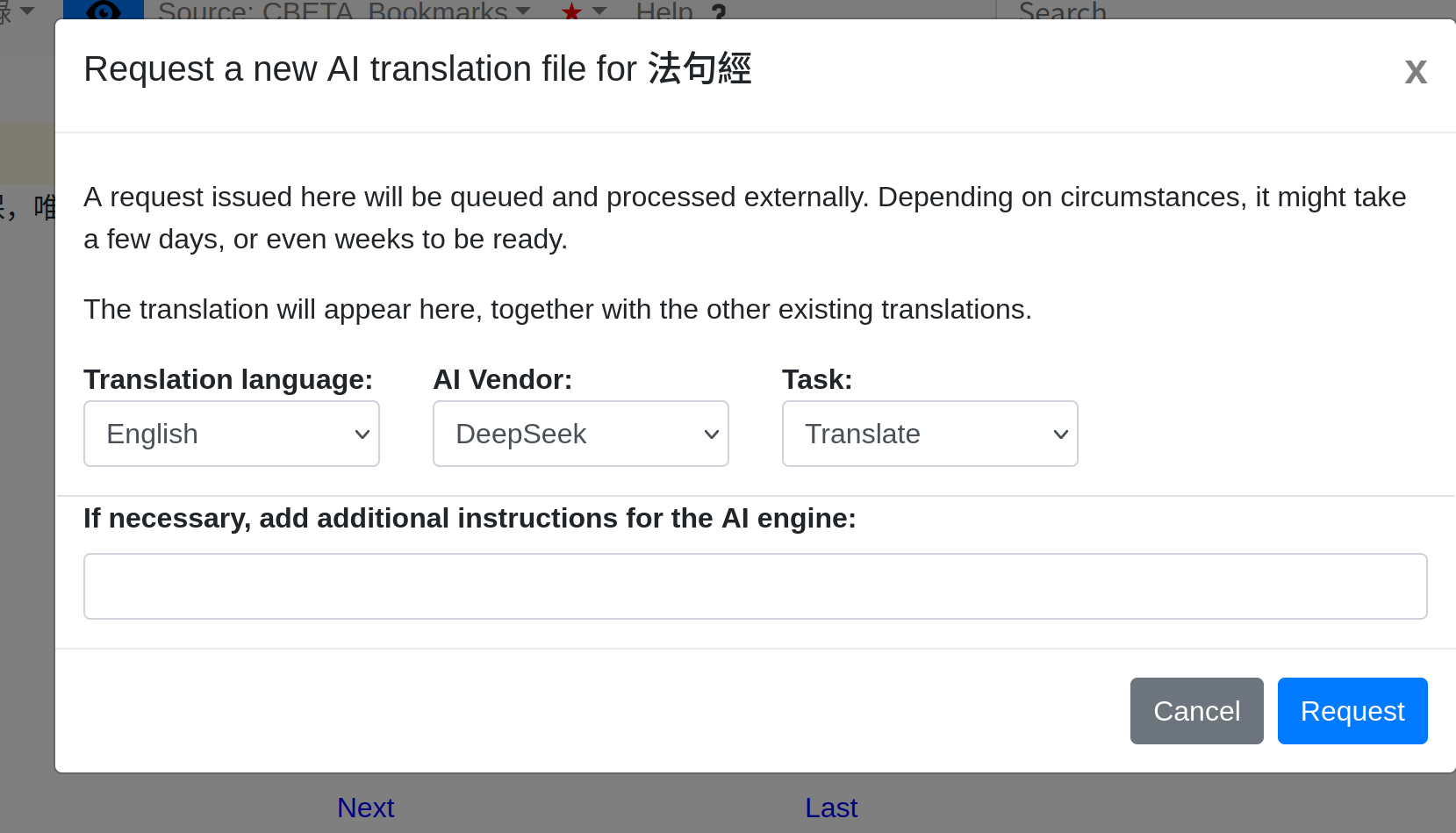
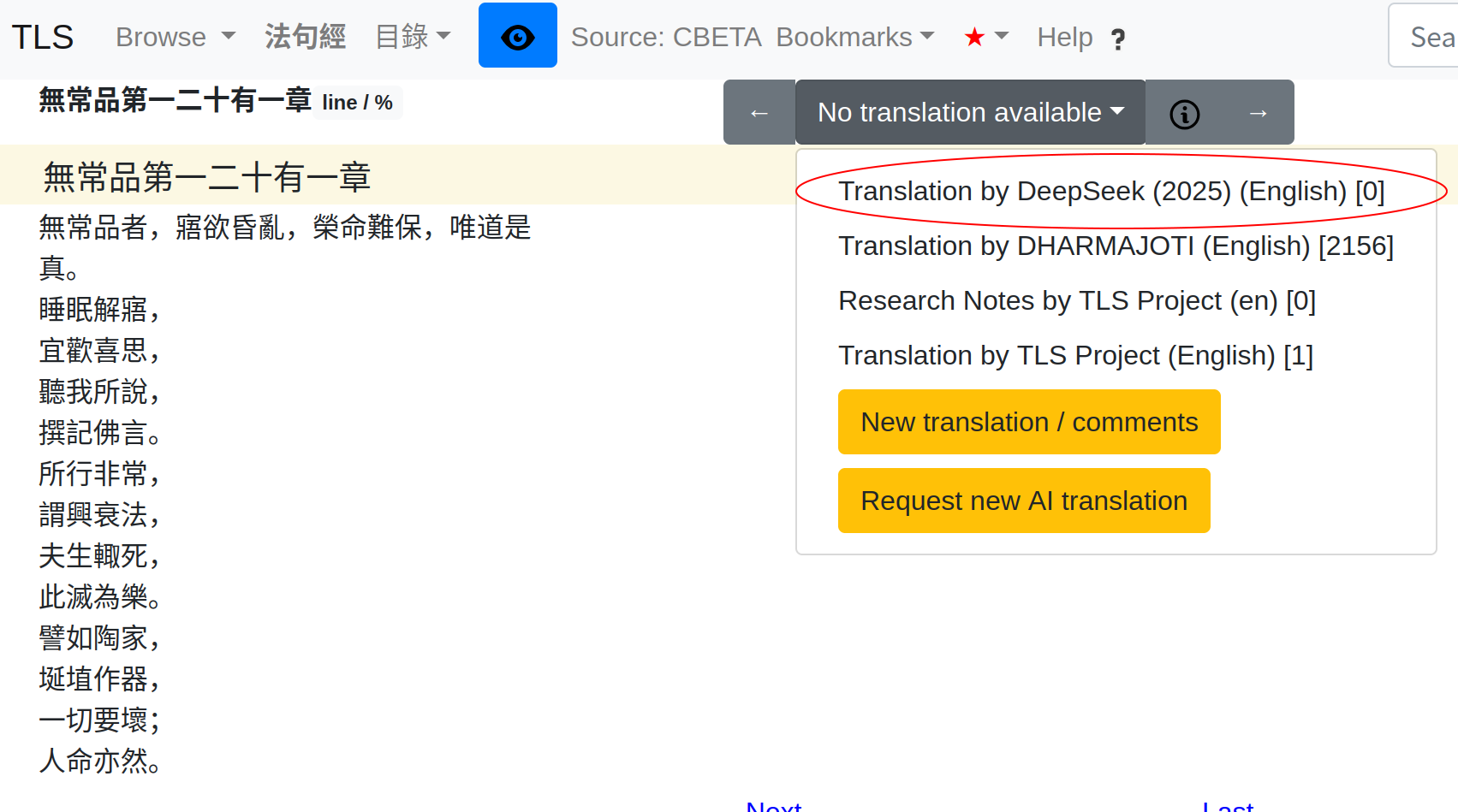
The default is reasonable for most cases, so just clicking on the ‘Request’ button will produce a request file. The request will be queued for external processing and will be uploaded to the system once it is ready. It will then fill the translation file, which at the moment, as shown in this screenshot, has 0 lines. While the system (still) allows this, any translations you might here will be overwritten by the uploaded file. This is also the reason there is no ‘AI’ button in this case.